 Tideline
Routing rules
A folder that claims a file by what it is called, or by where it was downloaded from.
A type folder asks what a file is.
That settles a .dmg and settles nothing at all about an invoice:
an invoice is a PDF like every other PDF. What marks one out is its name, or
the site it came from.
A routing rule is a folder and a list of conditions. You say whether any of them is enough or all of them have to agree, and the file lands there:
Invoices
  name          contains  invoice
  download URL  contains  stripe.com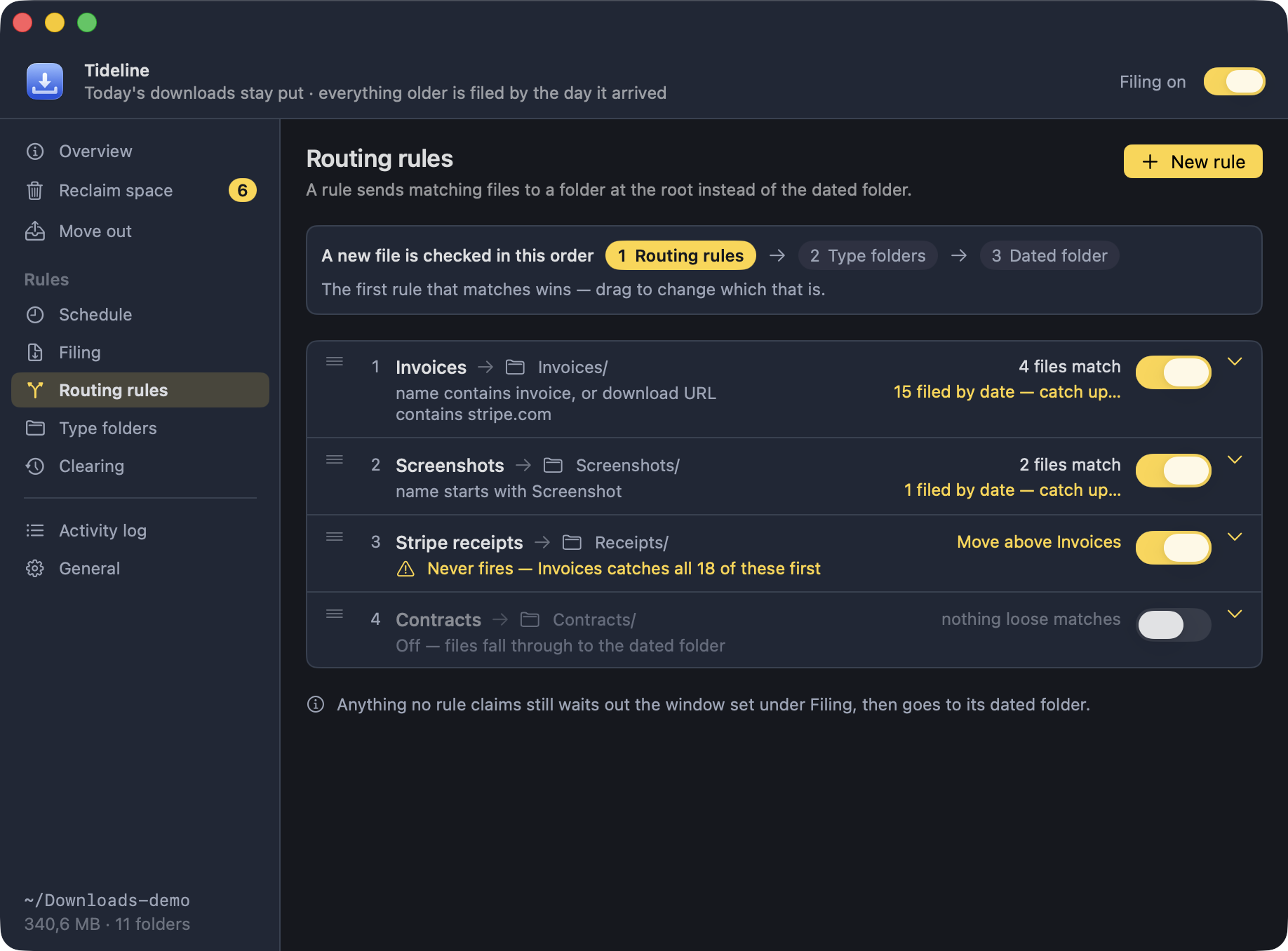
What a condition can look at
| Condition | Matches against |
|---|---|
Name | The file's own name, extension included |
Downloaded from | The address the file arrived from |
Beside it you pick how to compare — contains, is,
starts with, ends with — and type the words. For anything
those four cannot say there is matches pattern, which takes the same
shorthand as the skip list: * stands for anything, so
invoice-*-2026.pdf is one pattern rather than three conditions.
Any, or all
Catch a file when any of these is true is the default, and the way rules have always worked: one condition matching is enough. Switch it to all and every condition has to agree — which is how you say “an invoice and from Stripe” without also claiming every Stripe export that is not an invoice.
A condition you have not filled in yet is ignored either way, so a half-typed row never quietly stops a rule from matching.
Where it was downloaded from
macOS records the address every download arrived from, and keeps it when the file moves. Two useful things follow. A rule still recognises a file you renamed by hand — you changed the name, not where it came from. And a rule written today matches things that arrived months ago.
The whole address is matched, not just the site. A Logitech receipt arrives
from logitech.com with the only clue buried in the path
(…/CustomerReceiptInvoice?…), and a Stripe invoice
arrives from an Amazon storage address that mentions neither Stripe nor the
file. Matching only the site name would miss both.
Order
Rules are tried before the type folders, top down, and the first one that
matches wins. Without that, Documents would swallow an invoice
before Invoices ever saw it. Every row is numbered, and you
drag to change which rule gets asked first.
Because order decides everything, the number beside each rule is what that rule would actually get — files a rule above it already claimed belong to that rule, not to this one. If a rule above claims everything this one describes, the row says so: Never fires — Invoices catches all 15 of these first, with a button that moves it above the rule taking them.
Seeing what a rule catches
Open a rule and the bottom of the form lists the files it is matching right now, each with the condition that claimed it. That is the whole point of it being there: a pattern with a typo looks exactly like one that works, and without a list you would not find out for months.
The line above it counts them — how many are loose in Downloads, how many are already tucked into a dated folder, and how many a rule above has taken.
Case
Conditions ignore case unless you tick Match case. That is the opposite of the skip list, on purpose. A skip pattern names a file you can see sitting in the folder; a rule is a hunt for a word that could have been typed either way, and a rule that quietly stops matching the day a supplier changes their filenames is not something anybody notices.
Naming a rule
A rule is known by the folder it files into unless you give it a name of its
own. That is worth doing when two rules share a folder — receipts from
Stripe and receipts from the bank both landing in Receipts
— because a list showing both under the same name is a list you cannot
reorder with any confidence.
Catching up
A new rule only steers what arrives next. Everything already tucked into a dated folder stays there — so each rule counts those too, and offers to reach back for them: 12 filed by date — catch up…. It looks through the dated folders, shows everything the rules now claim, and moves only what you leave ticked. A dated folder left empty by that goes to the Trash.
Where, not when
Invoices/ rather than to a dated folder when its time comes.
A rule's folder is a folder in Downloads, never a path somewhere else. Filing writes inside the folder Tideline watches and nowhere else, which is what lets Put everything back be complete. Moving things out of Downloads is Move out, and it never happens on a timer.