 Tideline
Filing
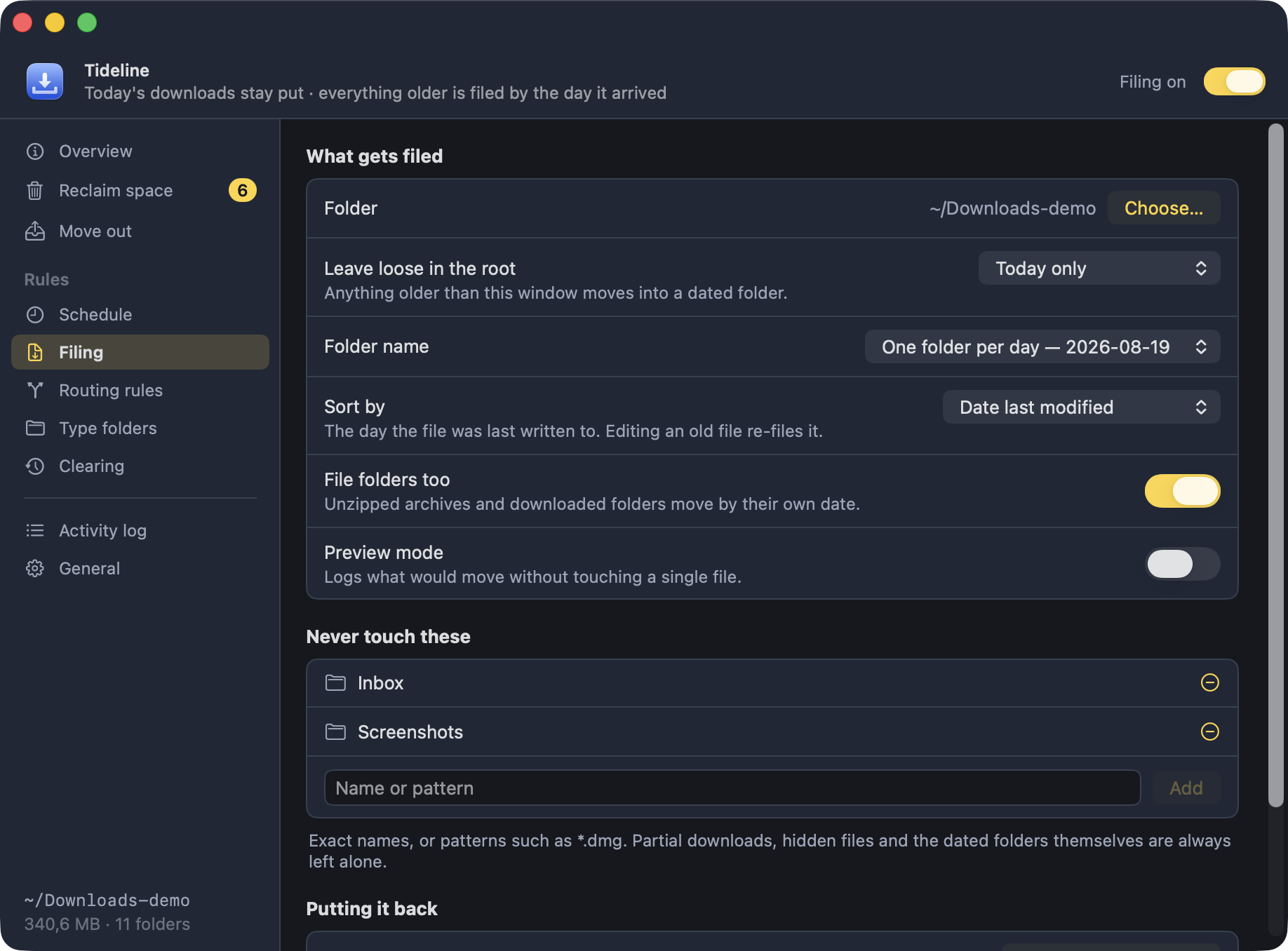
The rules a sweep follows: which folder it watches, how long a file stays loose in the root, and what the folder it lands in is called.
| Setting | Options |
|---|---|
| Folder | ~/Downloads by default; pick any folder |
| Leave loose in the root | Today only, today and yesterday, the last 3 days, the last week |
| Folder name | One folder per day (2026-08-19) or per month (2026-08) |
| Sort by | Date added to the folder (Finder's “Date Added”), date created, or date last modified |
| File folders too | Whether downloaded folders move like files |
| Preview mode | Shows what would move and touches nothing |
Preview mode
A sweep that touches nothing. Preview Now, on the Overview pane or in the menu bar, walks the folder exactly as a real sweep would and then shows what it would have done: every item, grouped by the folder it would have landed in, with what that adds up to. It is still written to the log as before.
Putting it back
The way out. Filing is the one thing here you cannot undo with a single gesture in Finder: a year of downloads sits across a hundred folders, and dragging them out again by hand is not an answer.
Put Everything Back… lists everything Tideline ever filed,
grouped by the folder it would come out of, all of it ticked. Untick anything
you would rather leave where it is, and the rest moves back into the root. The
folders that leaves empty go to the Trash — type folders included, since an
empty Installers/ is not something your Downloads folder had
before Tideline.
The same rules as everywhere else: a name already taken counts up to
report-1.pdf, folders you made yourself are never opened, nothing
is deleted, and preview mode previews it.
Filing switches off once a real restore finishes — the next sweep would put back exactly what was just taken out — and the switch in the header starts it again.
Never touch these
Exact names (Inbox) or patterns (*.dmg). It starts
with Inbox and Screenshots; both can go.
On top of your list, the app always leaves alone:
- Today's downloads — or whatever the Leave loose in the root window is set to
- Hidden files
- Partial downloads:
.crdownload,.download,.part,.partial,.opdownload,.tmp,.temp,.aria2, and Safari's.downloadbundles - Anything written to in the last 30 seconds, on the assumption that something is still filling it in
- The dated folders it created itself
- Folders you made yourself — those are never opened, let alone moved
Where the day comes from
Sort by decides. Left as it comes it is the date the file was added to the folder, which is what Finder shows as “Date Added” and what you usually mean by when you downloaded something. A file copied or restored from elsewhere carries the date of the copy, so if that is throwing things off, Date last modified may suit you better.
report.pdf is
already in the folder a file is moving to, the arriving one becomes
report-1.pdf, then report-2.pdf. This holds for
filing, for catch-up, for putting things back — everywhere.