 Tideline
Reclaim space
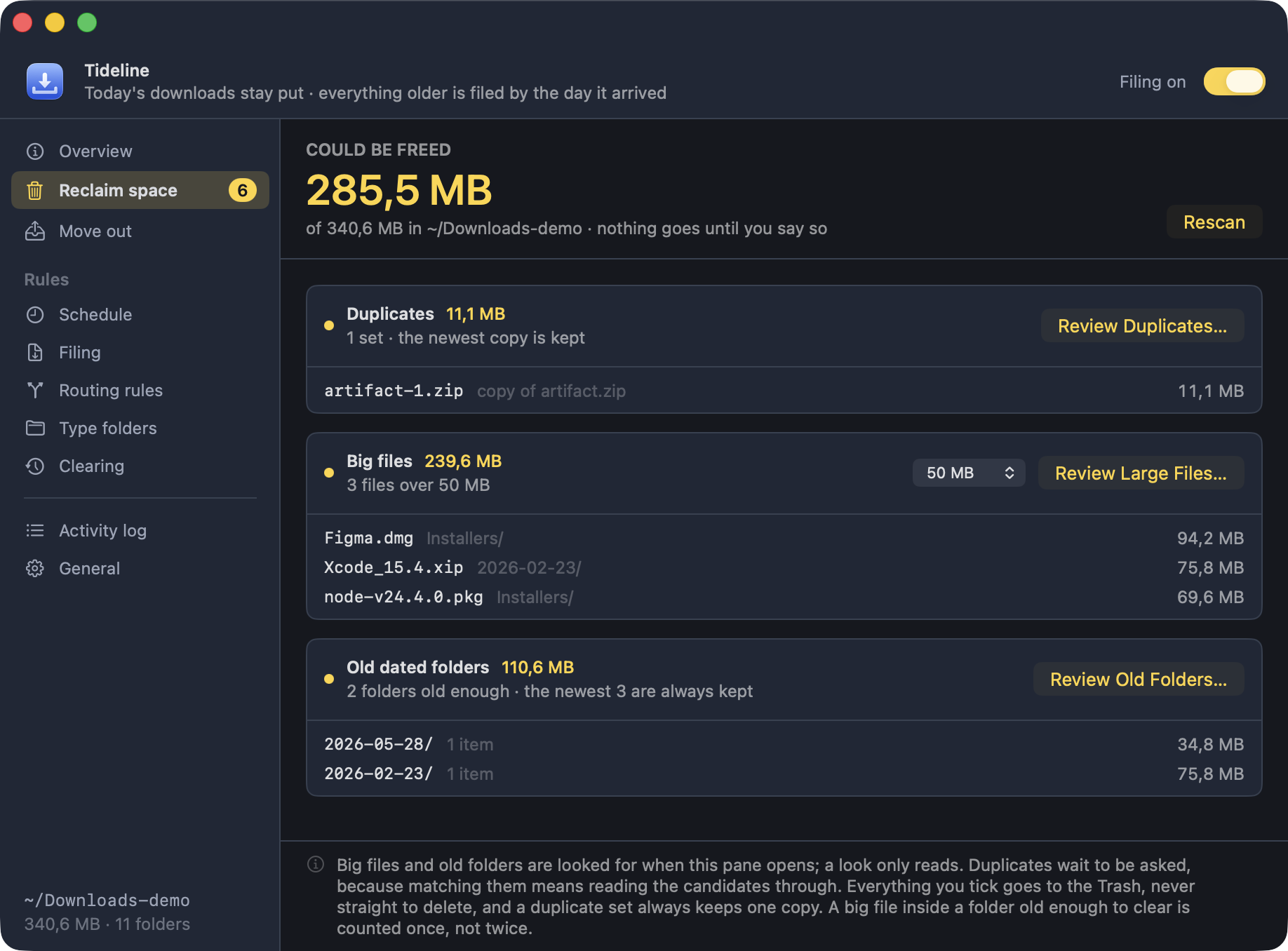
Filing never removes anything, so everything that could give space back is in one place: duplicates, big files, and dated folders old enough to clear.
Each shows what it found and the top few rows of it, with the review that decides what actually goes.
What scans on its own, and what does not
Two of the three look on their own. Big files and old dated folders are found by reading names, sizes and dates — a directory listing and a walk, neither of which opens a file — so they run when the window opens and the answer is already there when you arrive.
Rescan at the top looks again, duplicates included. A scan is also thrown away whenever the answer could have moved — after a sweep, after anything goes to the Trash, after a setting that governs it changes — so the next look is a fresh one rather than a figure from before the folder shifted underneath it.
Could be freed
That figure adds the three up. They overlap — a big file can sit inside a folder old enough to clear, and a duplicate copy can be both — so each byte is counted once, by the widest thing that would take it.
Nothing here moves on its own: a look only reads, and everything you tick afterwards goes to the Trash rather than being deleted outright.
A folder too big to measure
Underneath it is what the folder holds, which is measured up to 60,000 items and then reported as a floor — walking a folder past that takes long enough to be worth asking about. A folder that big says so instead of quoting a total the scans above it can outgrow, and Scan the folder in full walks the rest: the same reading walk, only allowed to finish, and the exact figure stands for the rest of the session.
The same file, more than once
Downloading the same file twice is what a Downloads folder does. The second
one lands as artifact-1.zip, the third as
artifact-2.zip, and the name stops telling you anything.
Review Duplicates… finds them: it compares the root and the folders Tideline made, groups files whose names match once a copy suffix is taken off, and reads through the ones that also match in size to check they really are the same file, byte for byte. Two files that merely look alike are never called copies.
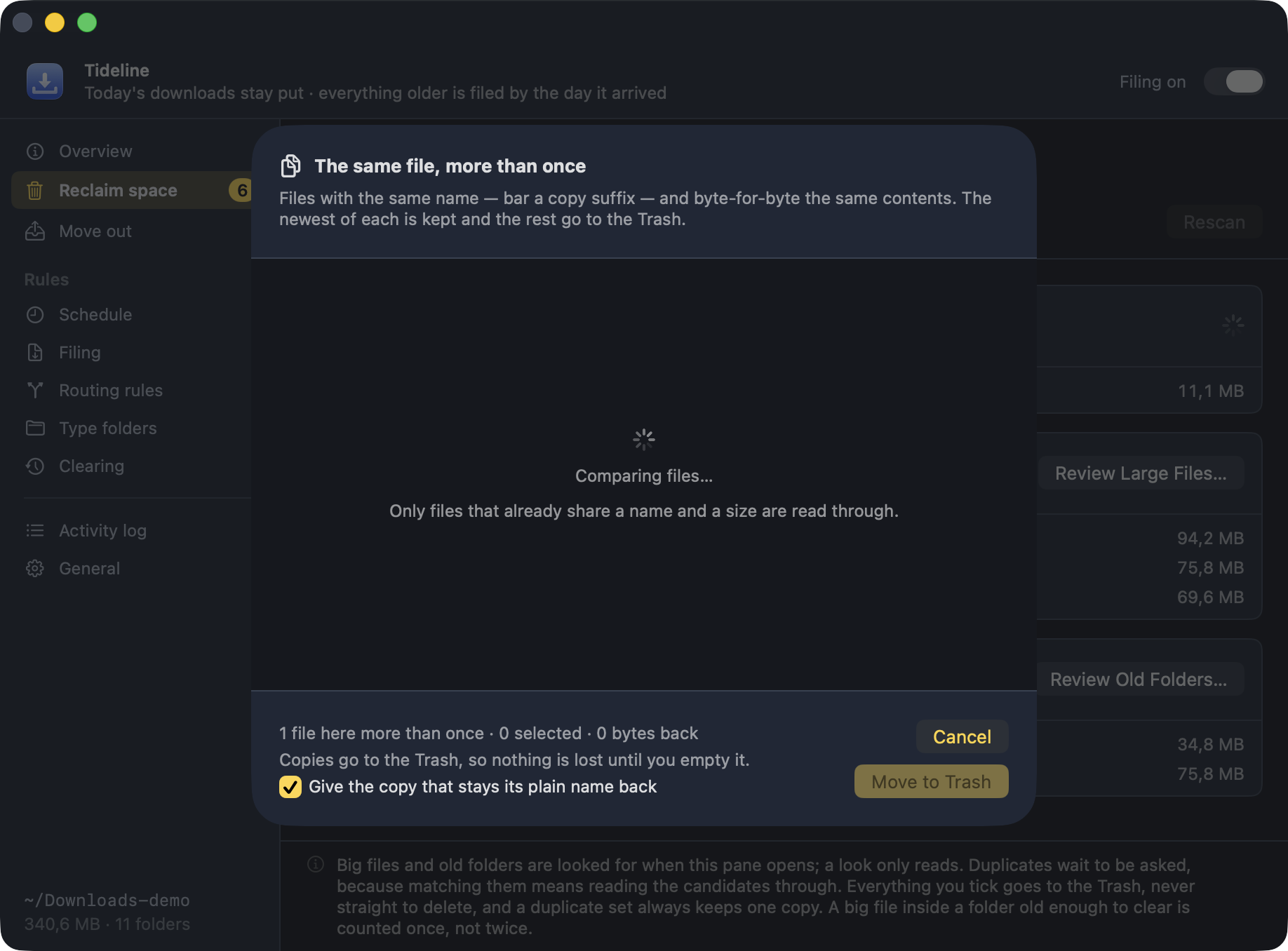
Each group starts with the newest copy kept and the rest ticked for the Trash;
untick anything you would rather hold on to. Copies that arrived together
share a day, so where the day cannot separate them the copy suffix does — it
is the downloader's own count, and artifact-2.zip exists only
because artifact-1.zip was already there. A group always
keeps a copy — the last one standing cannot be ticked. Nothing is compared
until you ask, nothing goes until the sheet says so, and everything goes to
the Trash rather than being deleted outright.
The copies are identical, so which one stays makes no difference to what you end up with — but what the file is often does. The magnifier at the end of a row opens that copy in Finder, as it does in the big-file review below, so you can look at the thing before agreeing the rest can go.
With the other copies gone, the one that stays can have its plain name back:
artifact-1.zip becomes artifact.zip, but only where
that name is free. Switch that off in the sheet if you would rather it kept
the name it has. A dated folder left empty by the removals goes to the Trash,
as it does after catching up; a type
folder is left alone either way.
What is taking up the room
Clearing goes by age; this goes by size. Filing tidies a folder, it never shrinks one, and a hundred neatly dated PDFs are not what is taking up the space.
Review Large Files… lists the biggest files in the root and in the folders Tideline made, largest first, with the folder each one sits in and the day it arrived.
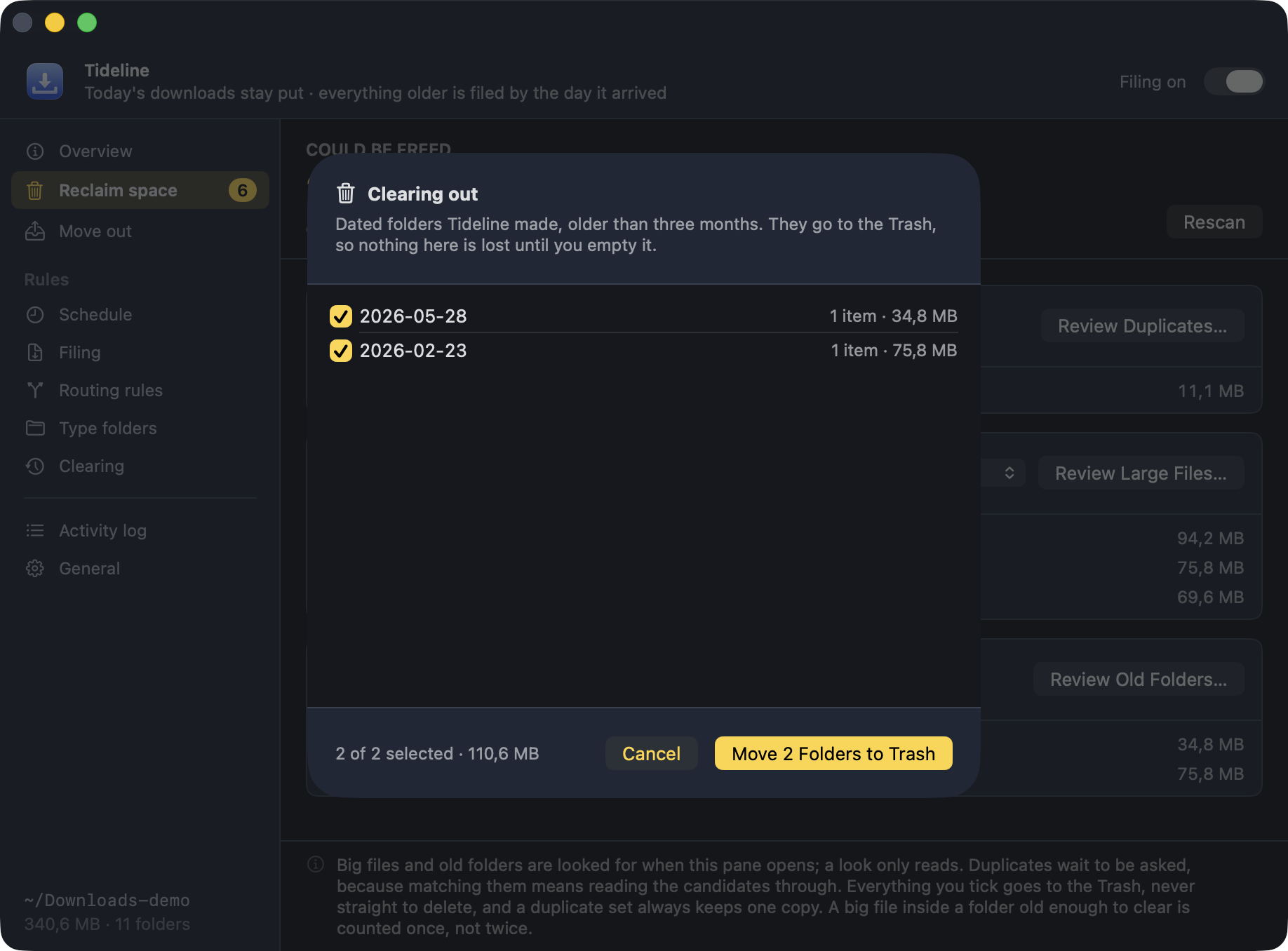
Nothing starts ticked. A duplicate always leaves a copy behind; a big file is the only copy there is, so each one is a deliberate choice — and the magnifier at the end of a row opens it in Finder, because “can this go?” is usually answered by looking at the thing rather than at its name. The footer keeps a running total of what ticking them would give back.
Bigger than sets the size — 50 MB up to 5 GB, 100 MB to begin with. It sits in the sheet as well as in settings, so you can turn it down until the list has something in it and back up when it has too much.
All three reviews are on the menu bar too, under Reclaim space.