 Tideline
Clearing
Old dated folders can go to the Trash once you have stopped needing them. Age is the narrower of the two ways to give space back, and the only one that can be left to run on its own.
| Setting | Options |
|---|---|
| Clear dated folders | Never, or older than a month, three months (default), six months, a year |
| Always keep | The newest 1, 3 (default), 5 or 10 folders, whatever their age |
| Clear on the daily sweep | Off by default — see below |
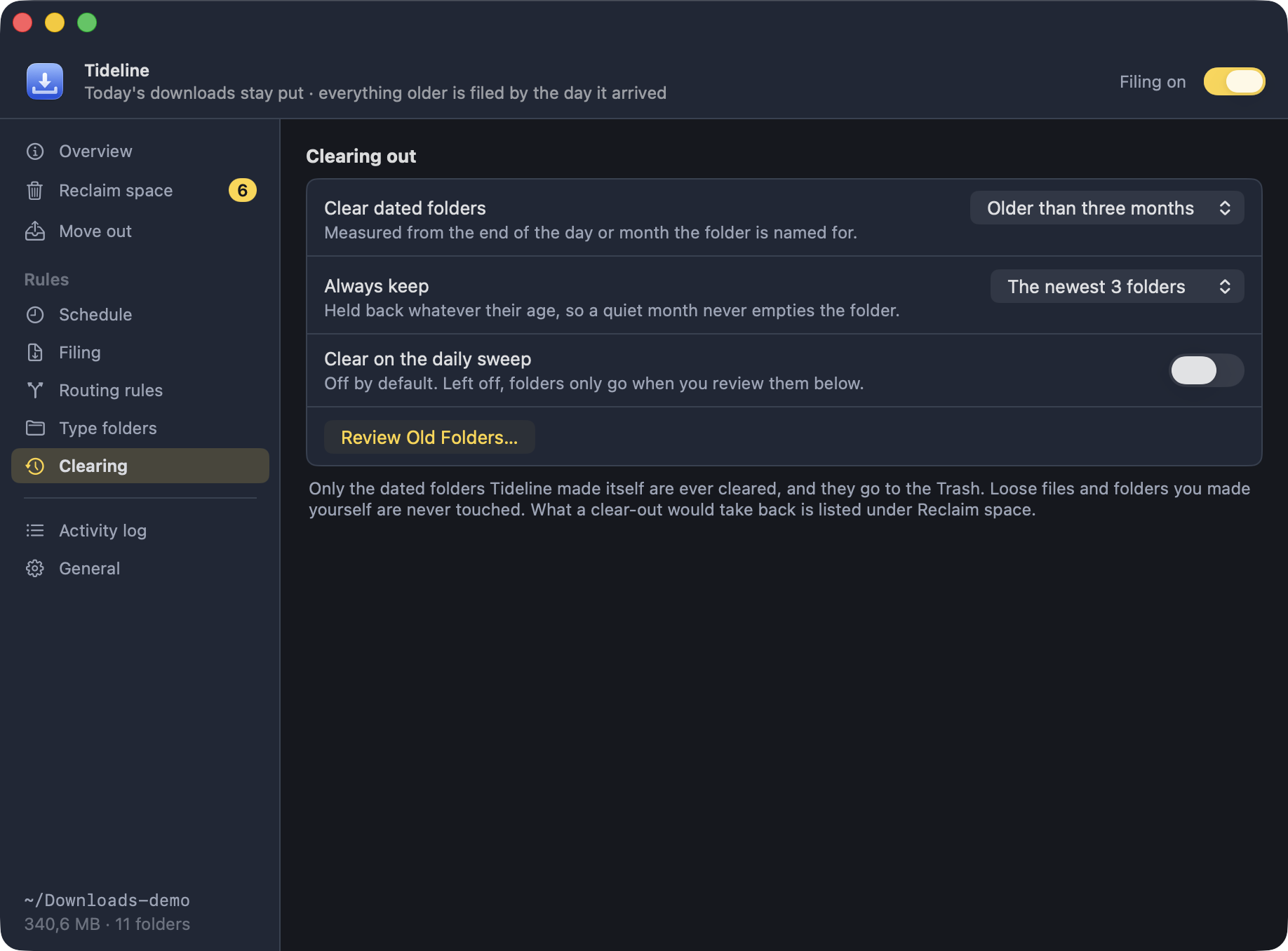
Review Old Folders
Review Old Folders… lists everything that qualifies with its item count and size, all of it ticked. Untick anything you want to keep, then Move n Folders to Trash. Nothing is removed until you press that button.
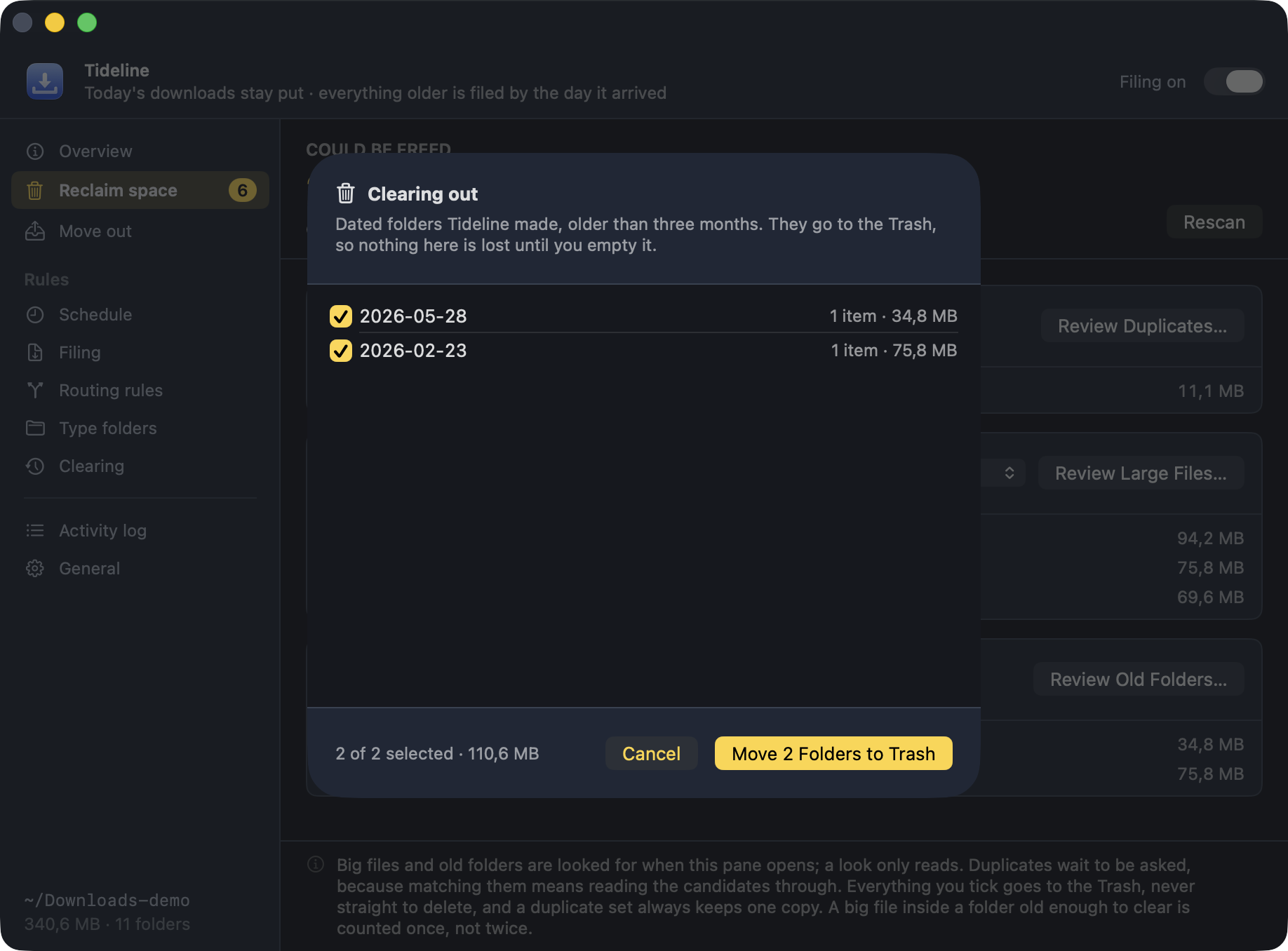
Letting it run unattended
Switching on Clear on the daily sweep lets it happen as part of the once-a-day run — never on a folder change, so a download landing can never trigger a removal.
Three rules make this safe to leave on
-
Only folders matching
YYYY-MM-DDorYYYY-MM— the ones Tideline made itself — are ever considered. Loose files, and folders you named yourself, are invisible to it. Type folders are never cleared either. - Age comes from the folder's name, measured from the end of the day or month it covers, so a folder is never cleared sooner than its name suggests. The folder's own timestamp is ignored; filing bumps that every time it drops something new inside.
-
Folders go to the Trash, never straight to
unlink. A setting you regret is a drag back out of the Trash, not a restore from backup.
Preview mode covers this too: it lists what would go and leaves it all in place.
What the age you set is actually worth — how many folders qualify and what they add up to — is on Reclaim space, alongside the other two scans.